Pixelbook as a developer machine
I'm specialized in mobile development and design. I forge products based on simplicity, fluidity, and beauty. Like a superhero, Creative Technologist at Elisa during the day, Explorer at Fluxit during the night. It all started long time ago on handhelds devices, but my passion flourished when I met Android, and exploded when I encountered Flutter. Author of Minimal
01.10.2019
Overview
In this post I'd like to give you some of my personal thoughts and feelings about using a Pixelbook as my main developer machine, for Android and Flutter development. Before, I couldn't find online much information about it, except for two posts written by Jasper Morgan from Snapp Mobile, and Tim Sneath from Google; but still they didn't answer all my questions and curiosities, which I try to address here. Stay with me if you too would like to know pros and cons of the Pixelbook as a developer machine.
Specs
Dimensions: 290.4 x 220.8 x 10.3 mm aluminum unibody
Weight: 1.11 kg (2.45 lbs)
Display: 12.3” 2400x1600 (235 ppi)
Processor: 7th Gen Intel® i7-7Y75
Memory (RAM): 16GB
Storage: 512GB NVMe solid state
For full specs and the other models can be checked here.
Look and feel
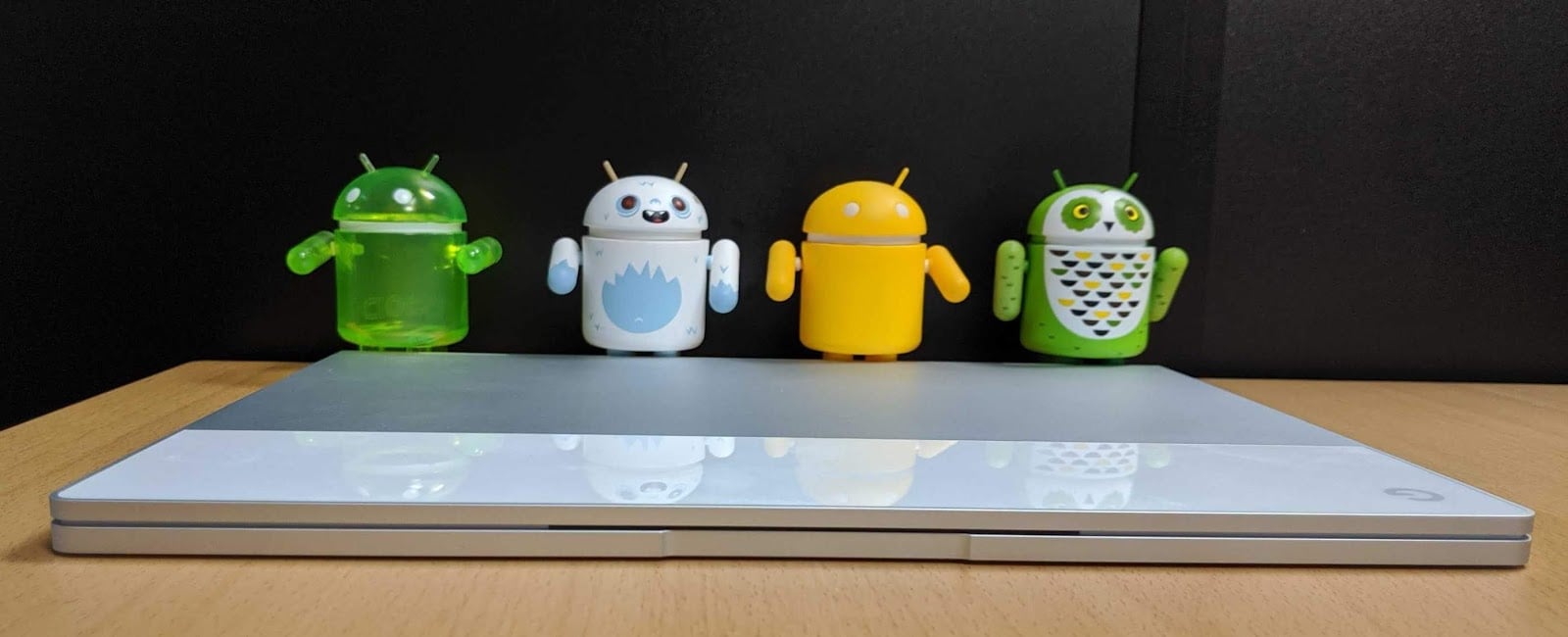
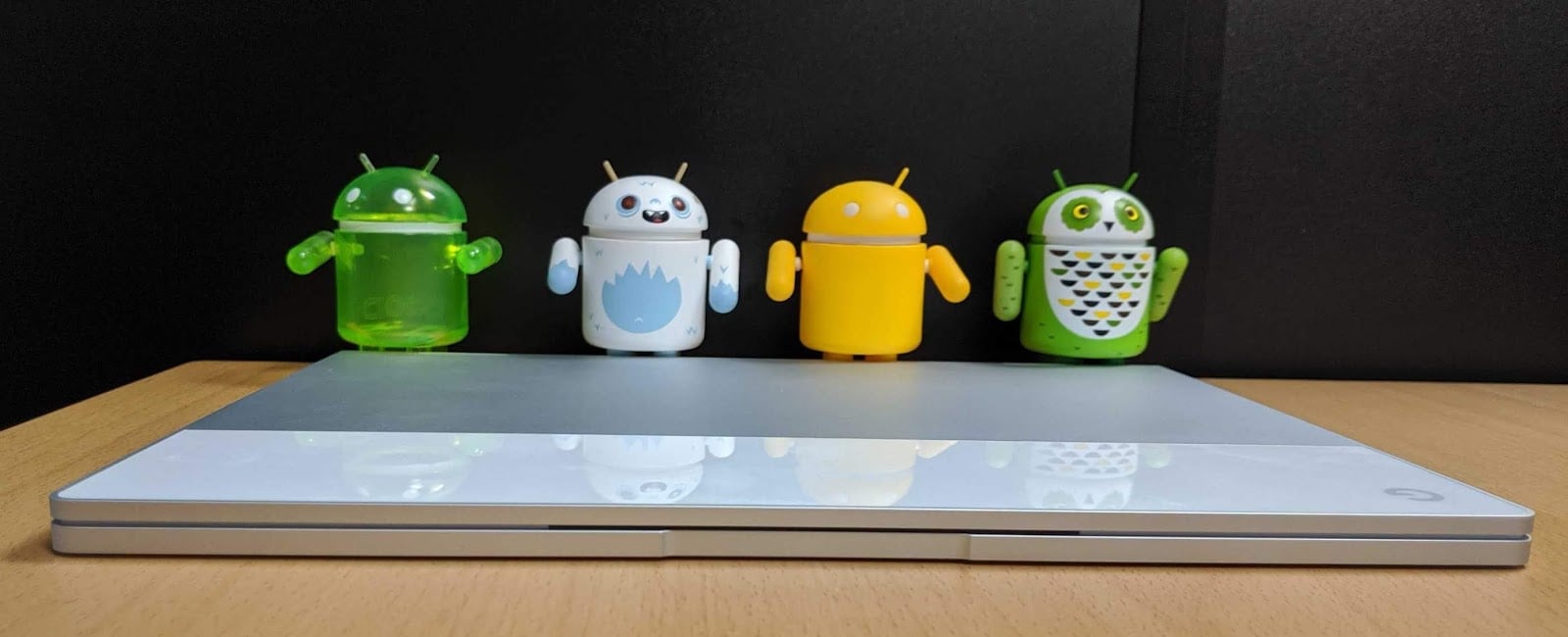
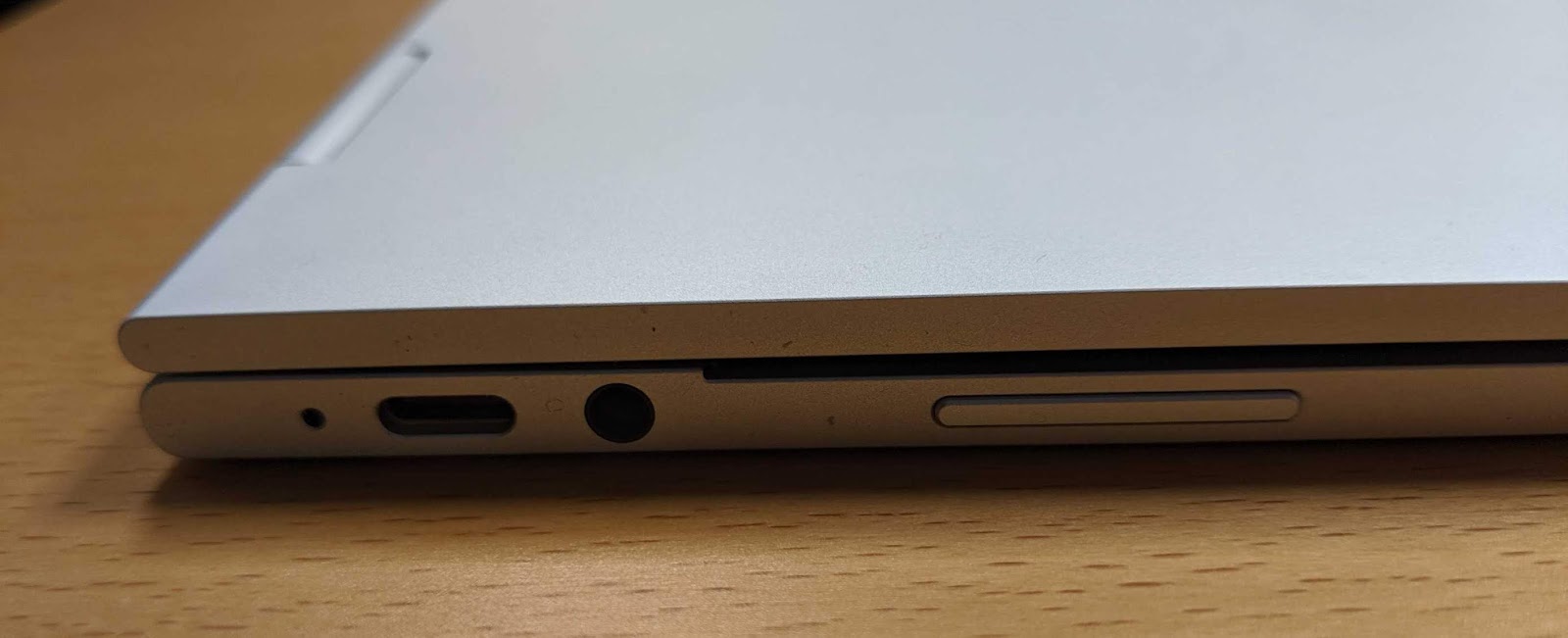
From the specs you can see immediately how thin and lightweight the machine is, and at the same time how powerful it is. It's solid and robust, it's nice to touch, it's nice to handle, it's slick, and more important it has an absolutely well designed and excellent keyboard that is a real pleasure to type with. Last but not least it has a great screen, brilliant resolution and perfect size (at least for me, because I personally dislike too big screens like 14''; when at desk I have a second proper monitor).
Enable developer mode
The machine runs ChromeOS (I assume you know what it is, otherwise there is plenty of material online), and I keep it on stable channel; but I needed to enable the developer mode to be able to sideload Android apps. Follow this step by step instructions; also remember to do it upfront, before you actually set up the machine, because switching mode will enforce a powerwash, removing all your accounts and data. Enabling the developer mode makes the machine a little bit more vulnerable, but at the same time gives you more control over it. Once enabled, there's this absolute annoyance that every single time you boot the machine on, this prompt appears:
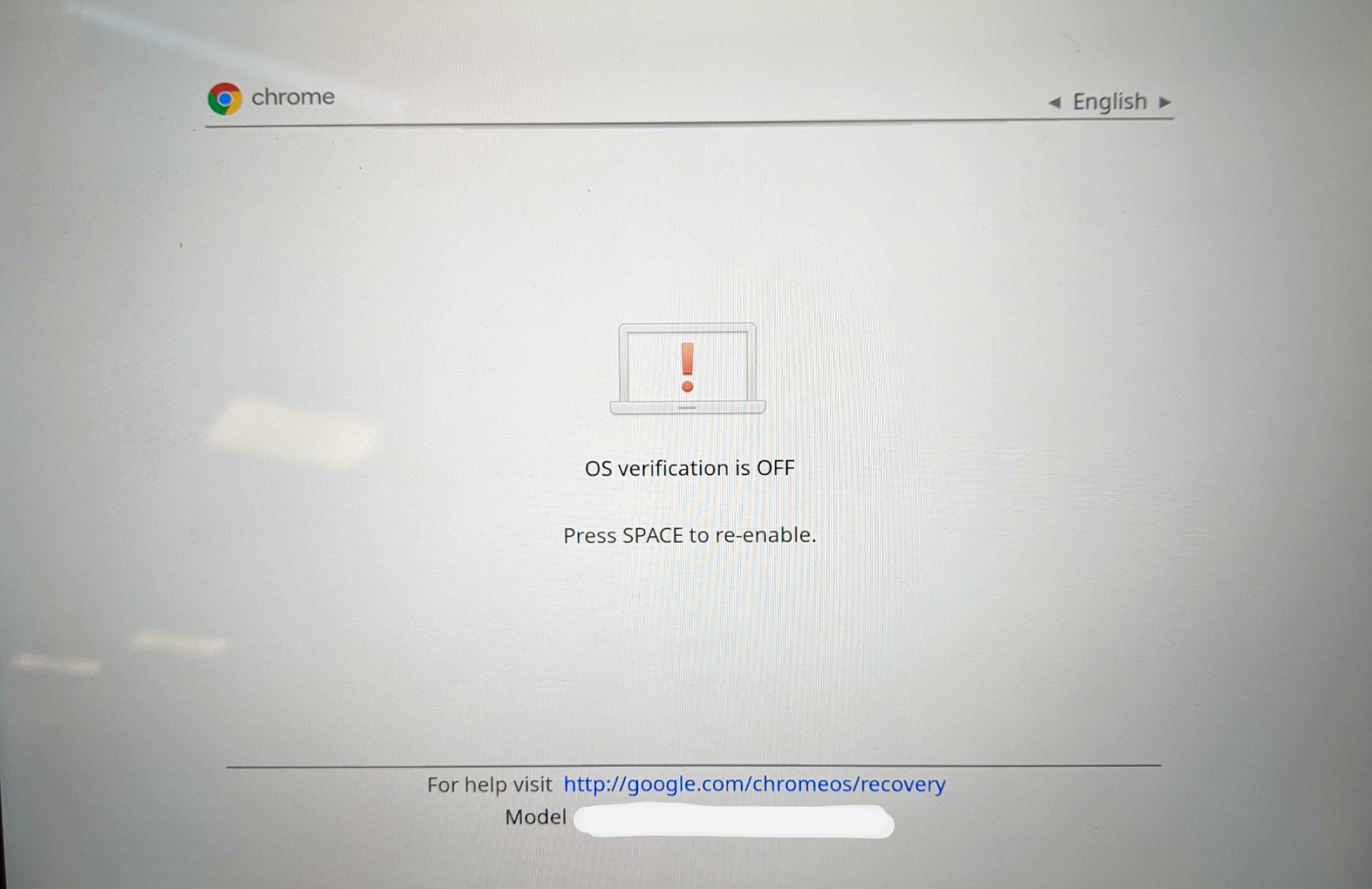
You are forced to press CTRL+D or the machine will beep very loud. I wish Google would expose an option in the Settings to skip that prompt, but I guess it runs at the boot level.
Enable Google Play Store
To enable the Play Store, and with it the possibility to install any Android app you would need, is very simple as the Android system is fully integrated with ChromeOS, you've a button under the Settings, just click on it and there you have Android 9 up and running:
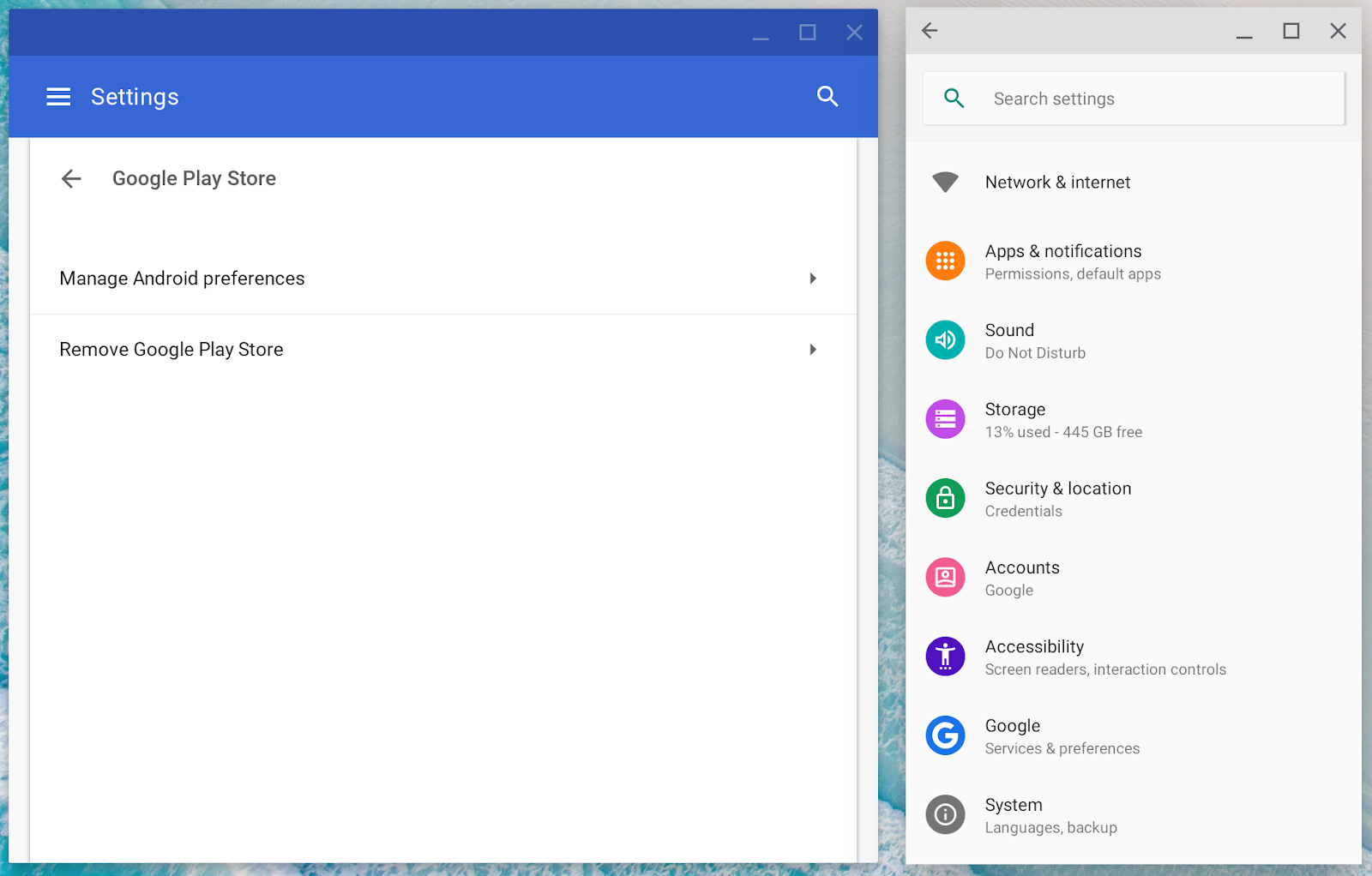
Most of the Android apps works out of the box, but some of them could give problems or issues due to the fact that they're not supporting ChromeOS. Last but not least, don't forget to enable the Android developer options as you would do on your phone.
Enable Linux apps
To enable Linux apps is as simple as to enable Google Play Store, one button under the Settings, just click on it and you've Debian 9 up and running:
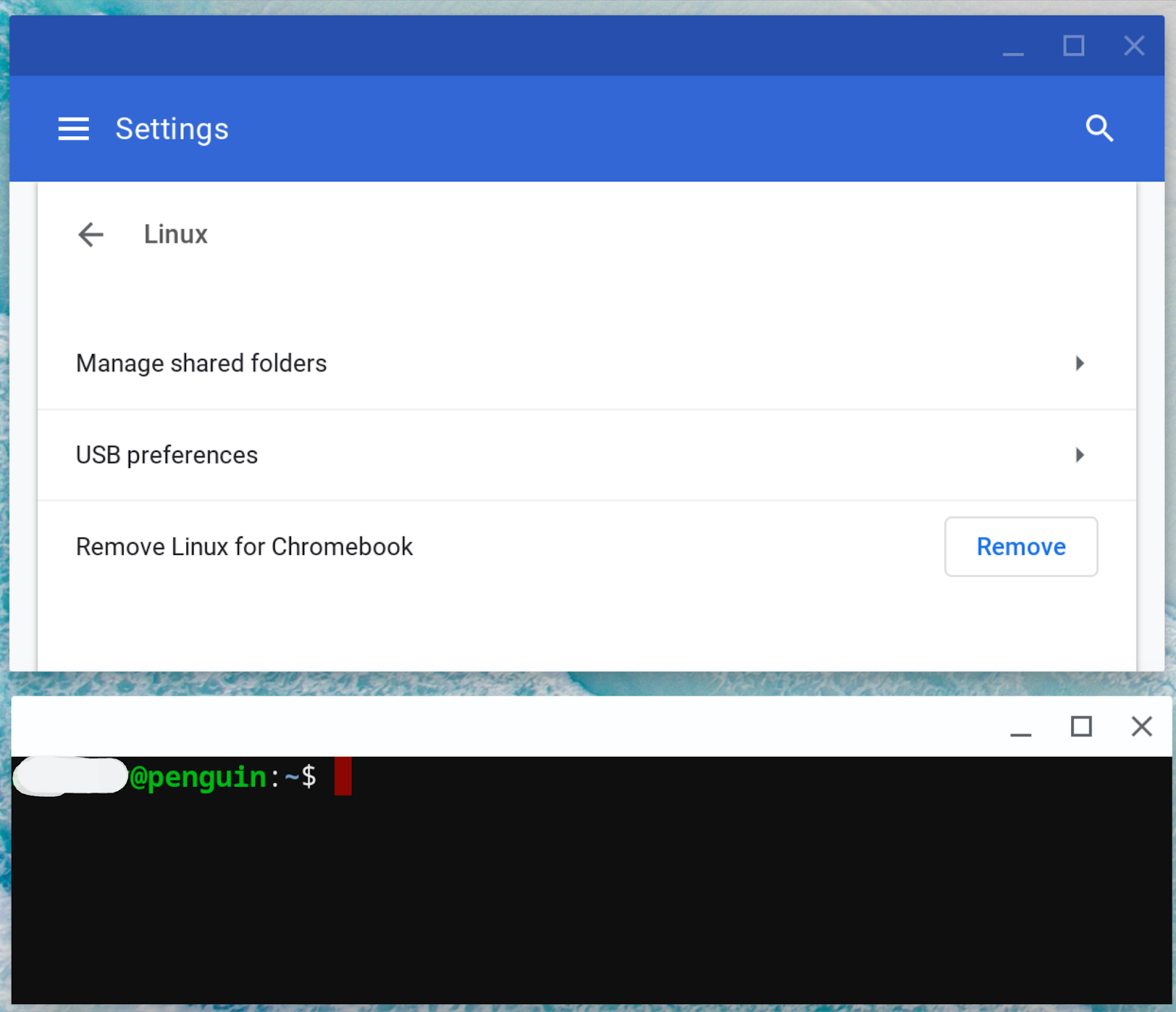
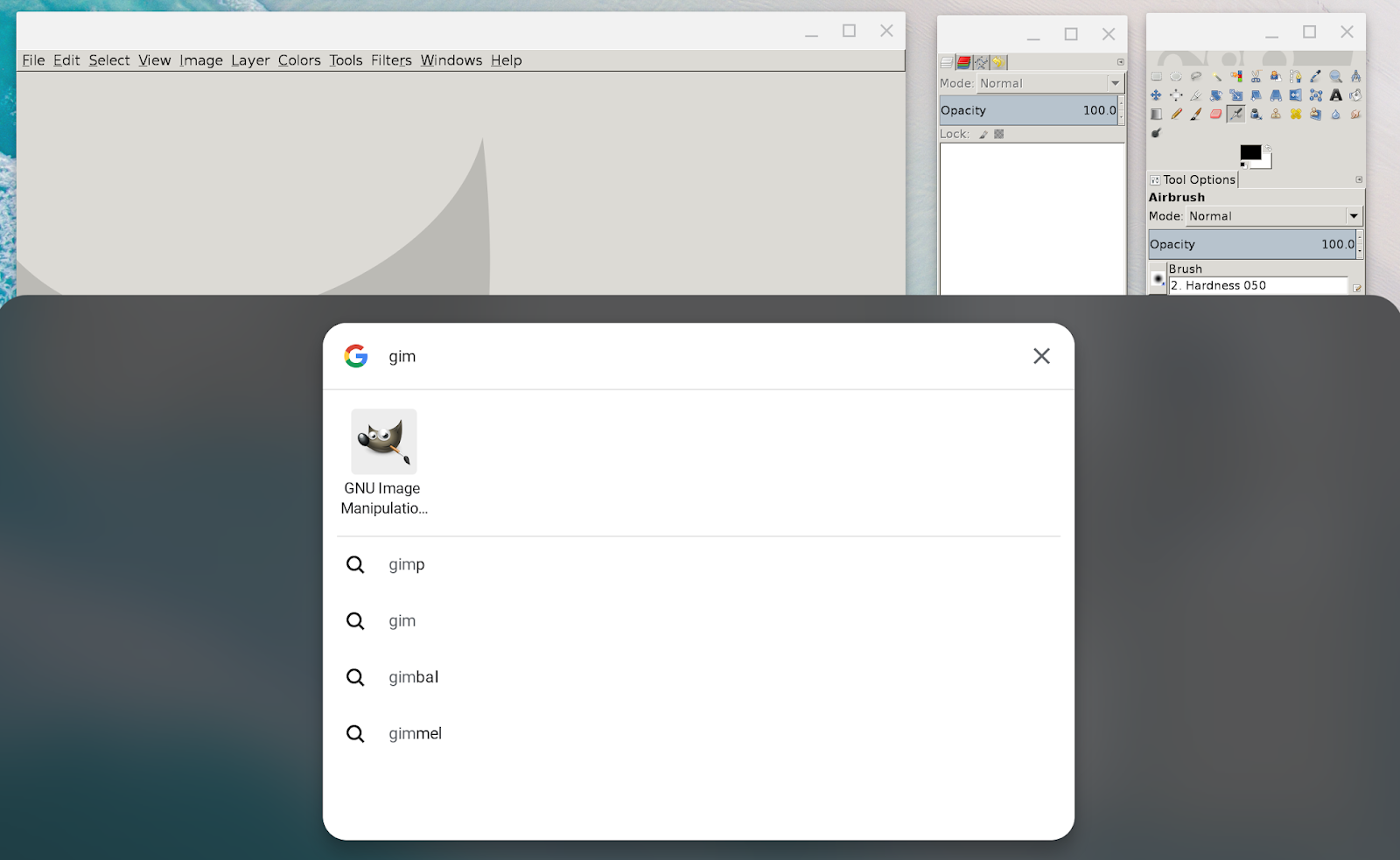
Linux apps support is still in beta; applications work very well, like in any Linux distribution, and their UI run at the shell level of the ChromeOS, so that they are managed by the system tile manager as any other window; they are fully integrated, so you can pin icons in the bottom bar, and find them from the search bar. More details in next section. For example below you can see Gimp running wrapped by the ChromeOS tile manager, and its icon fully integrated in the search bar:
File system(s)
This is how I imagine the file system in my mind:
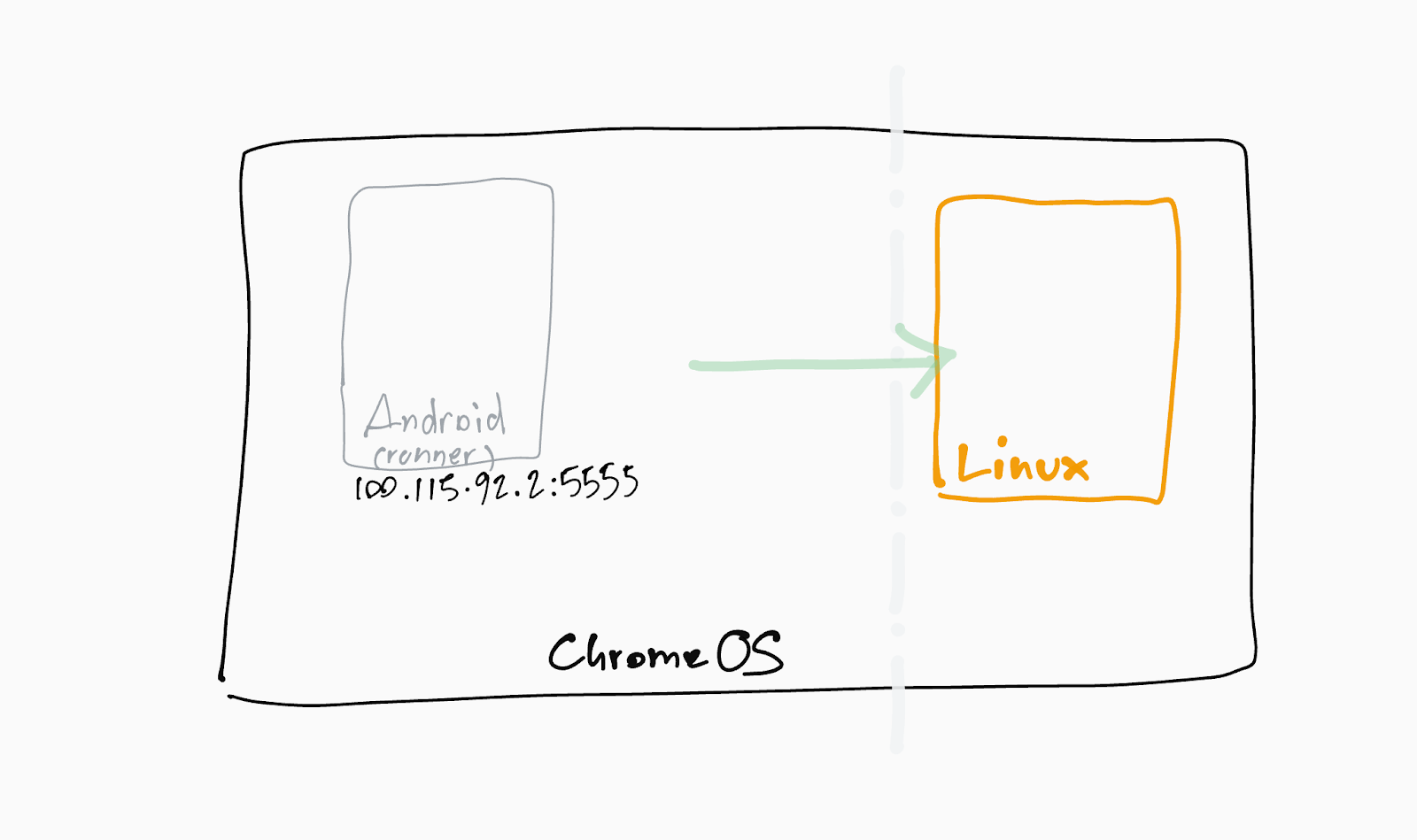
The communication within the systems is not bidirectional, meaning that the Linux container is, for security reasons, isolated from the rest of the os, therefore ChromeOS can access the Linux file system, but Linux cannot access the ChromeOS file system. A normal user which enabled Linux apps will be able to access the Linux file system through the My Files app (ChromeOS default file manager), and it will see it mounted as a normal folder, therefore she won't even notice any difference:
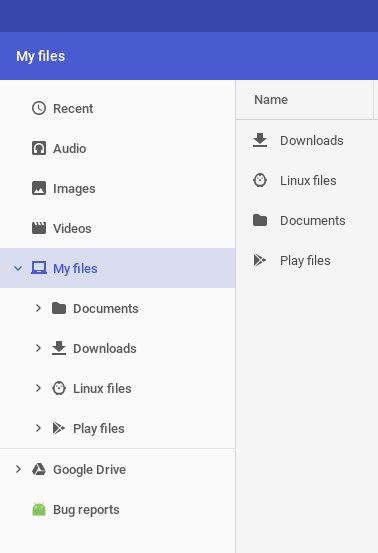
We can also have a look at where the Linux file system is actually mounted within the ChromeOS file system, first opening the Chrome shell (crosh, pressing CTRL+ALT+T), and then running its shell command:
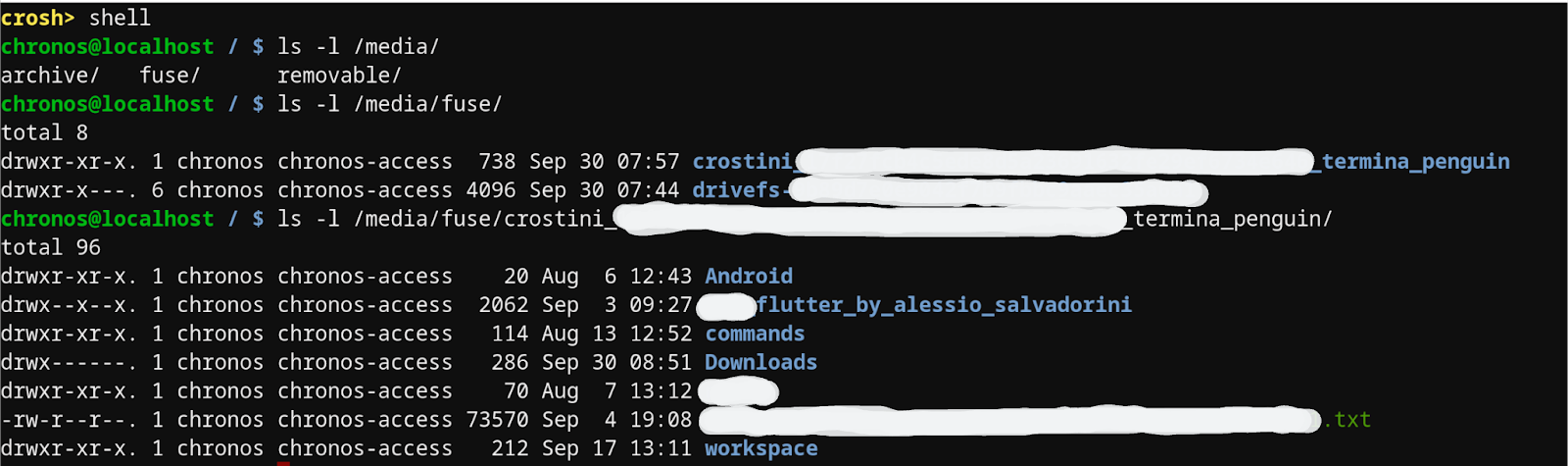
So the file system is mounted under /media/fuse/ and then a folder which starts with 'crostini', the name of the project to bring support of Linux applications in ChromeOS. I think this is important to have it clear, because for instance I can install a browser (say Chrome or Chromium) in Debian, launch it, and when I save a file it will download it in the Downloads folder, not the ChromeOS Downloads folder, but the Debian Downloads folder. Same for screen videos captured by Android Studio.
Develop, deploy, debug
As I code both Android and Flutter, for me the most convenient option is to use Android Studio, which comes now with a ChromeOS installer, strongly recommended:
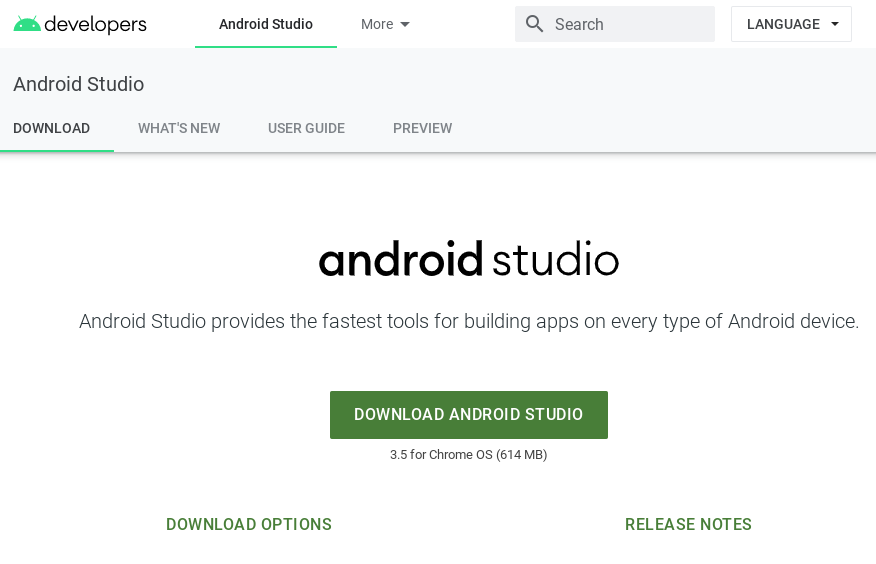
The setup is the very same as in any other os, including the Flutter plugin; and one more thing, to code and deploy within the same machine, you need to allow the Linux container (where Android Studio runs) to communicate with the Android image connecting over adb:
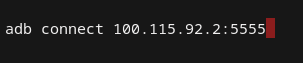
Once connected, the Pixelbook will be an option in Android Studio drop down menu:
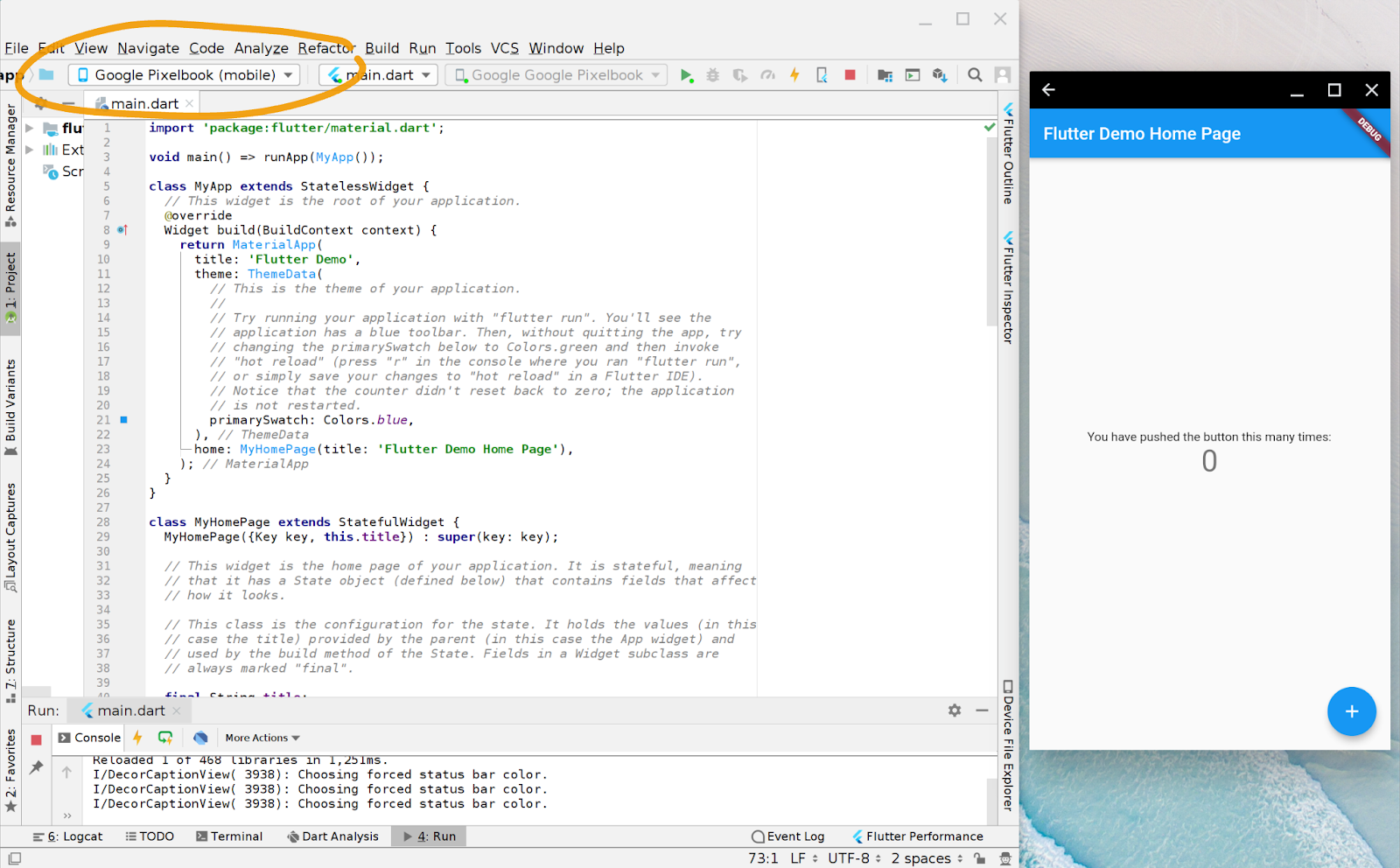
At this point, Flutter's hot reload is quite a nice feature to have, for fast feedback:
Conclusion
The Pixelbook to me is an experimental, wonderful machine, extremely light and solid, with a long lasting battery (~10 hours) and a fast boot (less than 20s to start to work), with security built in, with a keyboard that is a pleasure to type with, and a screen that is a pleasure to stare at. There's basically no difference between switching off the machine or not, and when rebooting you'll find your tabs open as they were, so you can continue from where you left. It's also a perfect machine for mobile development, because I can code and deploy within the same machine. Portability / code-to-go is the keyword here: I can code at the office (at my desk, at the cafeteria, at the lounge area), on the bus, on the tram, on the train, at the airport, on the airplane, at home (at my desk, at my dining table, on my sofa, on my bed).
In few weeks the Pixelbook 2 (aka Pixelbook Go) will be released, exactly 2 years from the original model, and the only needed improvement from my point of view is at least 32GB of RAM. If rumors are true that it will have instead the same 16GB (as reported here, here and here), then Google is IMHO missing a great opportunity: to introduce the de facto mobile developer machine, the reference machine for all the Android and Flutter mobile developers around the world, something that comes directly from Google and is guaranteed to support Android Studio out of the box. If it doesn't happen in 2019, then we'll wait 2 more years, and until then the Pixelbook and the Pixelbook Go will be equally valid; alternatively, very few Chromebooks with 32GB, or Chromeboxes for programmers that code only at their desks.


